VS Code extension walk-through
The DiscoPoP VS Code extension is an optional addition to the GUI and the command line tools. It does not replace them; use it to browse, preview and apply the suggestions (and hotspots) that an analysis has already written to a .discopop folder. This walk-through shows the steps for the example program of the repository.
Prerequisites
- Follow the setup of the VS Code extension.
- Analyze the example first, with the GUI (GUI walk-through) or on the command line (Command line walk-through):
cp -r example /tmp/dp_example && cd /tmp/dp_example
discopop_cxx example.cpp -o example
./example
cd .discopop && discopop_explorer
Step 1: Open the project in VS Code
Open the project folder (the folder that contains .discopop) in VS Code, or click “Show Suggestions in VSCode” in the Pattern Detection tab of the GUI. Open the DiscoPoP view; by default it is in the sidebar.
Step 2: Create a configuration
If the .discopop folder was created newly, the extension adds a configuration automatically. By default, the current timestamp is the label of the configuration (in the screenshots below, 03_12_2025-16_27_15) and it is shown in the Configurations view.
To add a configuration manually, hover over CONFIGURATIONS, click + and select ViewOnly. Choose a name and the path to the .discopop folder. The configuration types ViewOnly and Script show the results of an analysis that was started elsewhere; a Script configuration can additionally start a script that writes a .discopop folder.
Step 3: Load and browse the results
Click the clock-like Load Results button next to the configuration name. The identified suggestions appear in the Suggestions view. Click a suggestion to see its details in SUGGESTION DETAILS and the relevant code in the editor.
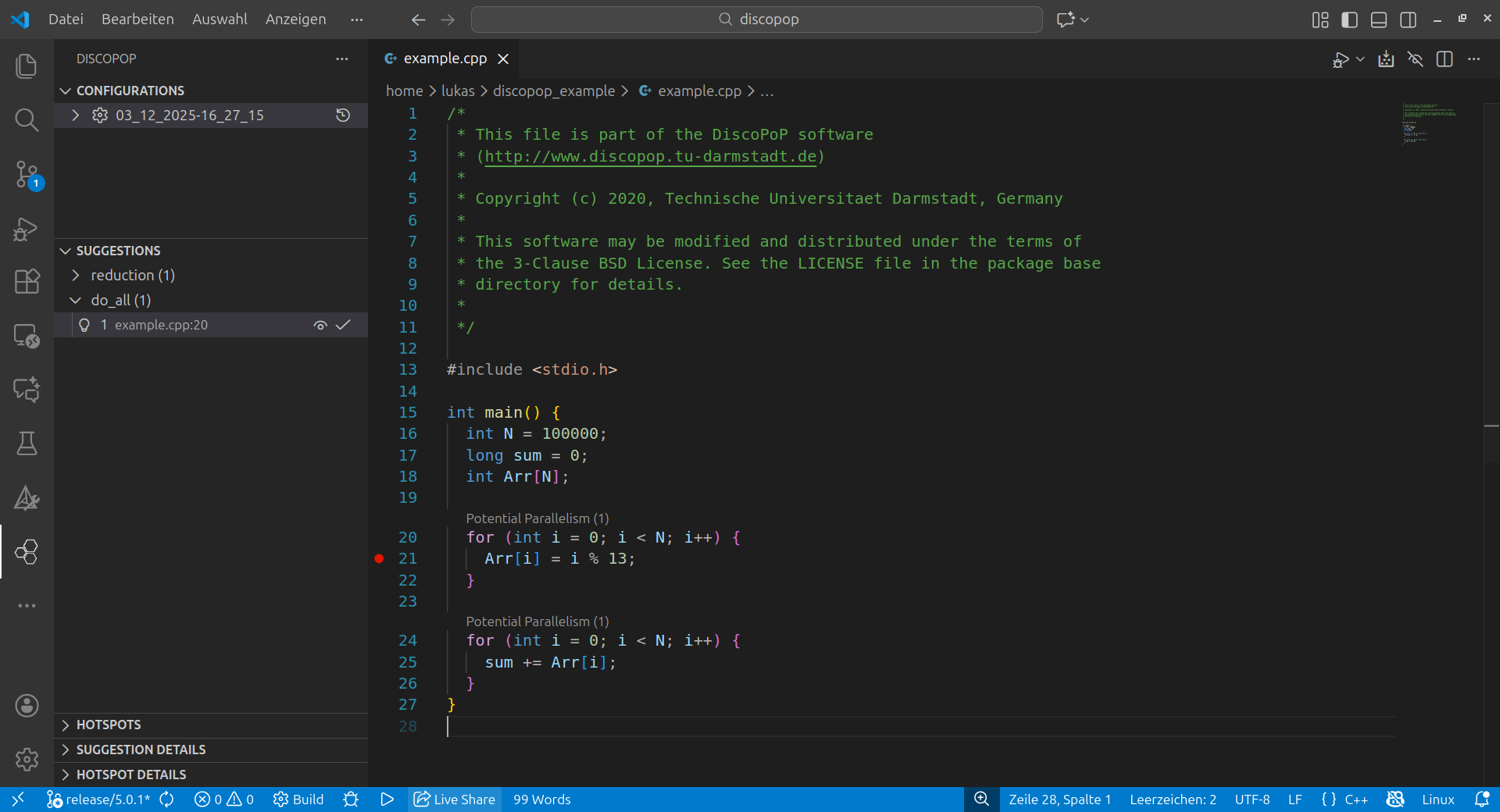
The following screenshot shows an exemplary suggestion preview.
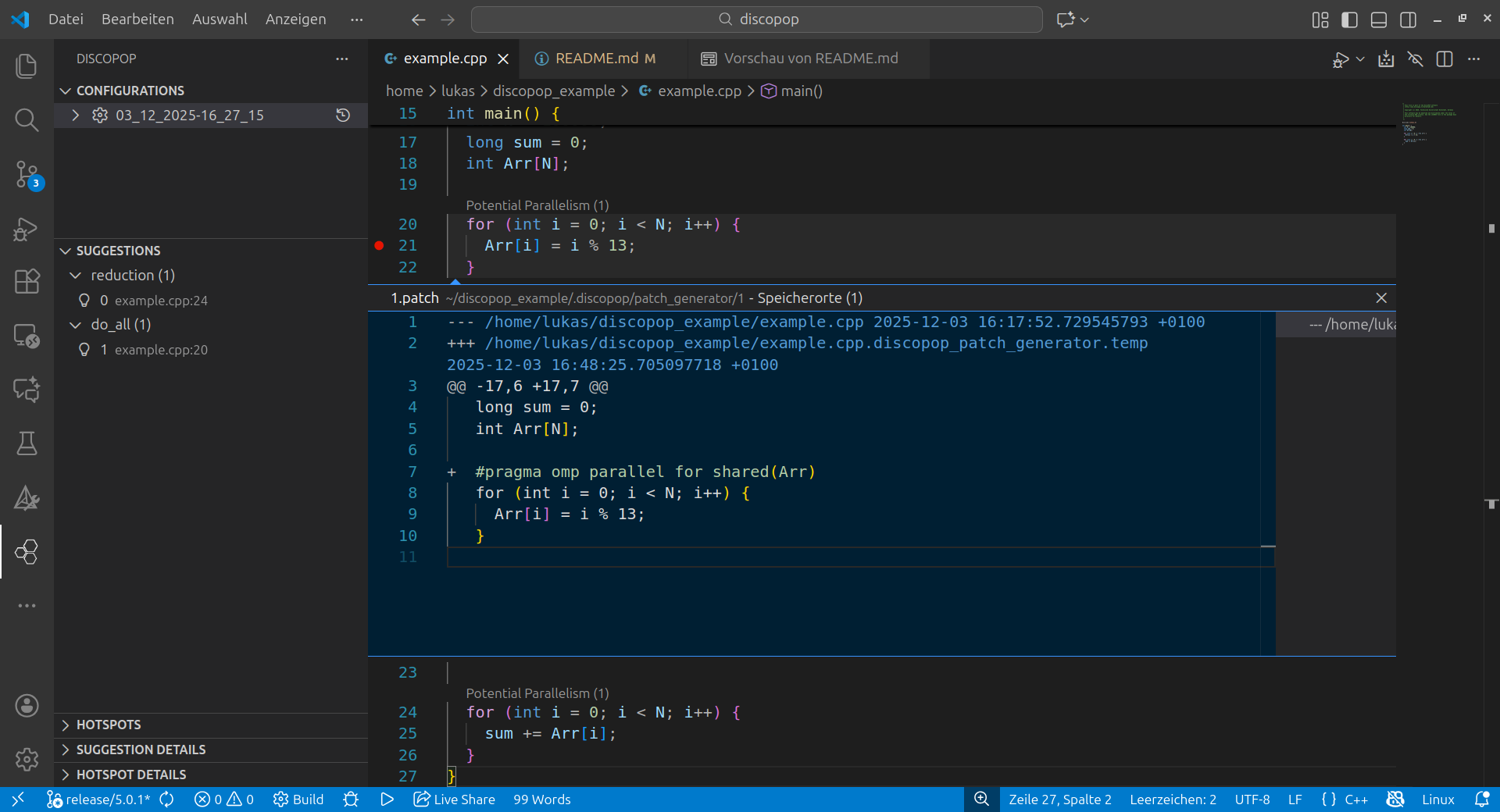
Step 4: Apply suggestions
Hover over a suggestion and click the icon that appears to apply it, or to roll back its application. In the source code, the annotations Potential Parallelism(count) mark the code regions with suggestions. Clicking an annotation applies the suggestion; if several suggestions exist for the region, you are asked which one to apply.
Further usage
- Open
.discopopin a terminal to use the tools on the command line, e.g. patch applicator, or to look at the generated patches. - Hotspot detection results can be viewed like suggestions if they are stored in the
.discopopfolder of the configuration.